Order Statuses
Every order has its current state marked by a status. Order statuses can provide valuable information about the state of an order at a glance. The video and table below provide an overview and more details about order statuses in WooCommerce
Order Statuses in WooCommerce
Order statuses let you know how far along the order is, starting with “Pending payment” and ending with “Completed.” The core WooCommerce plugin uses the following order statuses:
| Status | Description | Notes |
|---|---|---|
| Pending payment | The order has been received, but no payment has been made. Pending payment orders are generally awaiting customer action. | If your customer needs a payment link to make payment, check the document on paying for orders. |
| On hold | The order is awaiting payment confirmation. Stock is reduced, but you need to confirm payment. | The On hold status is generally assigned to an order when a customer pays via an “offline” payment method that doesn’t have immediate payment confirmation, like the BACS gateway. Offline payment methods require you to manually verify the payment was processed; once you confirm payment has been received, you can change the status of the order. The On hold status may be temporarily assigned to orders if the customer paid using a delayed notification payment method, like SEPA Direct Debit. Depending on the payment gateway in use on your site, the order may be moved automatically from On hold to a different status once the payment clears. Check the order notes on the order and the documentation of your payment gateway for details. You may also see the On hold status if you use a payment gateway that has an option to separate the authorization and capture of funds. Check the order’s notes and your payment gateway’s documentation for details. |
| Processing | Payment has been received (paid), and the stock has been reduced. The order is awaiting fulfillment. | All orders require processing except those in which all products are both Virtual and Downloadable. This is the shop owner or warehouse’s cue to ship the order and manually change the status to Completed. |
| Completed | Order fulfilled and complete. | Requires no further action. |
| Failed | The customer’s payment failed or was declined, and no payment has been successfully made | Depending on the payment gateway and the payment confirmation method it uses, this status may not show immediately. Orders will be marked Failed if the order was abandoned before payment was complete and the hold stock window expires without a response. Here is a helpful article for a better understanding and how to fix Failed orders in WooCommerce. |
| Draft | Draft orders are created when customers start the checkout process while the block version of the checkout is in place. | Orders in the Draft status are only visible on the “Draft” sub-tab of the Orders overview page. See the Draft Order Status section below. |
| Canceled | The order was canceled by an admin or the customer. | When an order has the Canceled status, stock for line items on the order is returned to the store’s inventory if inventory management is enabled. An order with the Canceled status may need to be refunded. Check the order’s notes and your payment gateway’s documentation for details. |
| Refunded | Orders are automatically put in the Refunded status when an admin or shop manager has fully refunded the order’s value after payment. | If you opt to use the Manual Refund option, it is possible for an order to reach this status without the customer’s funds having been returned.Check our documentation on Refunding orders in WooCommerce for more details. |
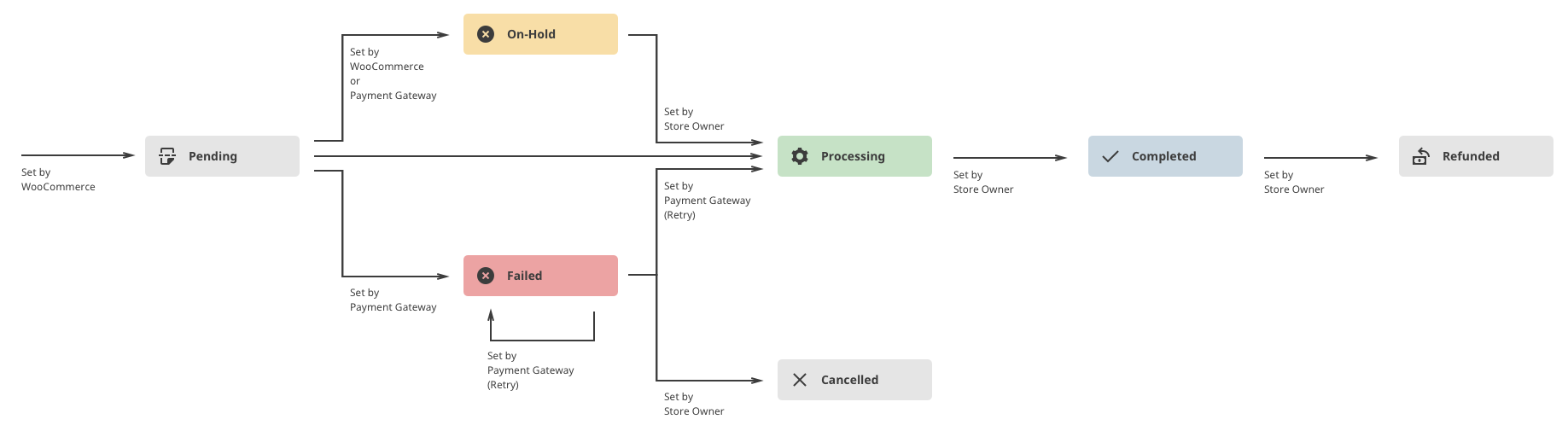
Visual Diagram to Illustrate Order Status flow
This flow chart illustrates how an order moves through statuses from Pending payment to On Hold, Failed, or Processing then Completed, Canceled or Refunded.
Related Articles
WooCommerce Reports
Reports in WooCommerce give you the ability to see your store’s performance from month to month using graphs and stats. It has four sections: Orders, Customers, Stock, and Taxes. To view the legacy reports, go to: WooCommerce > Reports. Orders Orders ...Coupon Creation (Woocommerce)
1. Types of WooCommerce Coupons WooCommerce supports four main types: Percentage Discount: e.g., 20% off the entire cart. Fixed Cart Discount: e.g., €10 off the total order. Fixed Product Discount: e.g., €5 off specific products. Free Shipping: ...Adding and Managing Products
Before you can start selling, you need products to offer. That’s why adding and managing your inventory is a crucial step in setting up your shop. Getting Started with Product Management in WooCommerce In WooCommerce, you can add a product with just ...Powersoft Sync plugin guide (WordPress Dashboard)
✅ Goal This guide explains how to use the Powersoft Sync plugin inside the WordPress dashboard and what each option means. The plugin connects your WooCommerce eShop with Powersoft365 ERP, allowing you to synchronize important data such as: ? ...How to Replace Product Images from Powersoft365
When you want to update or replace product images in your e-shop, the Powersoft365 plugin lets you do this easily by syncing your images from Azure to WordPress. ? Before You Begin All product images must be uploaded or replaced in your Azure ...